Installation#
Python Distribution#
It is recommended to start with installing a full-featured Python-Distribution like Anaconda (available for Windows, macOS and Linux). This will install a bunch of useful additional tools beside the basic Python installer: JupyterLab, Notebook, Spyder, conda Environment Manager, Anaconda Navigator and all the scientific Python Packages (NumPy, SciPy, MatPlotLib, Pandas, …).

Download Anaconda#
Download and install Anaconda (Version 3.x) for your operation system. (Help on Installation).
Download and Install TrussPy#
TrussPy is available as a package on PyPi (the Python Package Index). The source code of the development version is published on GitHub. For installing TrussPy with pip open a terminal window:
Windows: From the Start menu, search for and open “Anaconda Prompt”.
macOS: Open Launchpad, then click the terminal icon.
Linux: Open a terminal window.
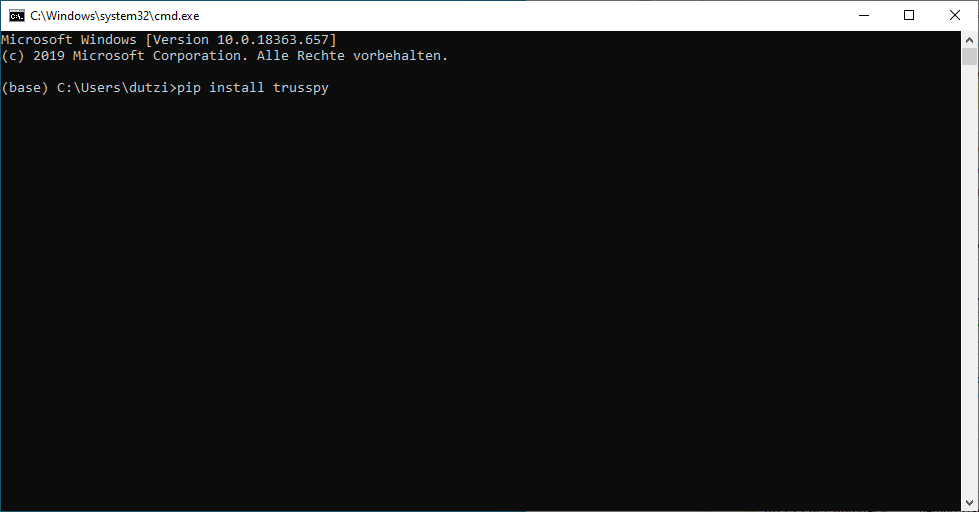
Install TrussPy#
Inside the terminal window type
pip install trusspy
to download and install TrussPy.
Run a Notebook#
Start Anaconda Navigator, Launch Notebook from the Home Tab and wait for the Browser Window to open.
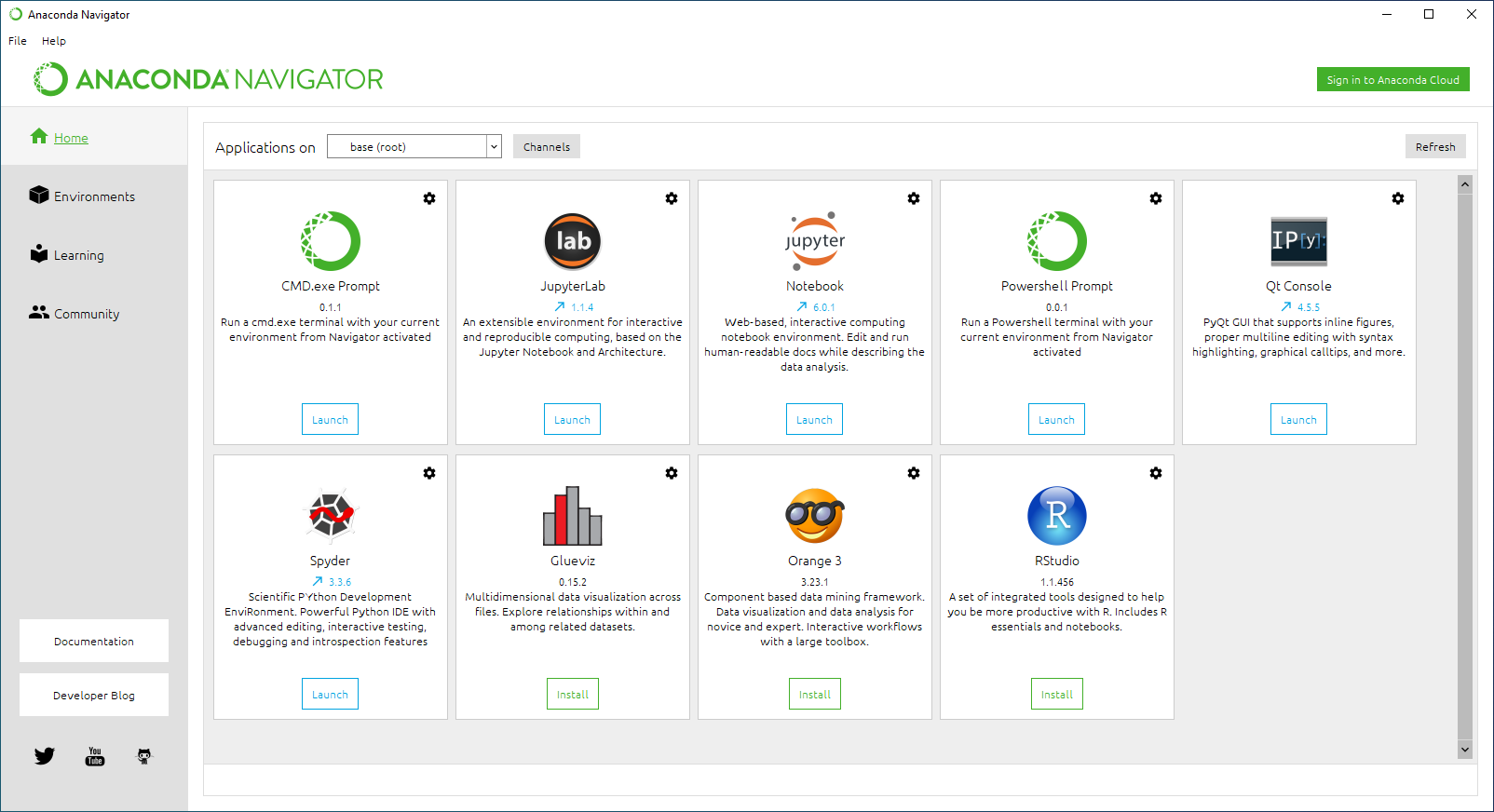
Anaconda Navigator#
Navigate to a path where you would like to store the TrussPy notebooks. Create a new Notebook by clicking the New button located top right. Select Python 3 from the dropdown list. The new Notebook will open in a new browser window. Each cell is executed with SHIFT-ENTER or the Run Button.

Jupyter Notebook#
Continue with one of the Examples.